

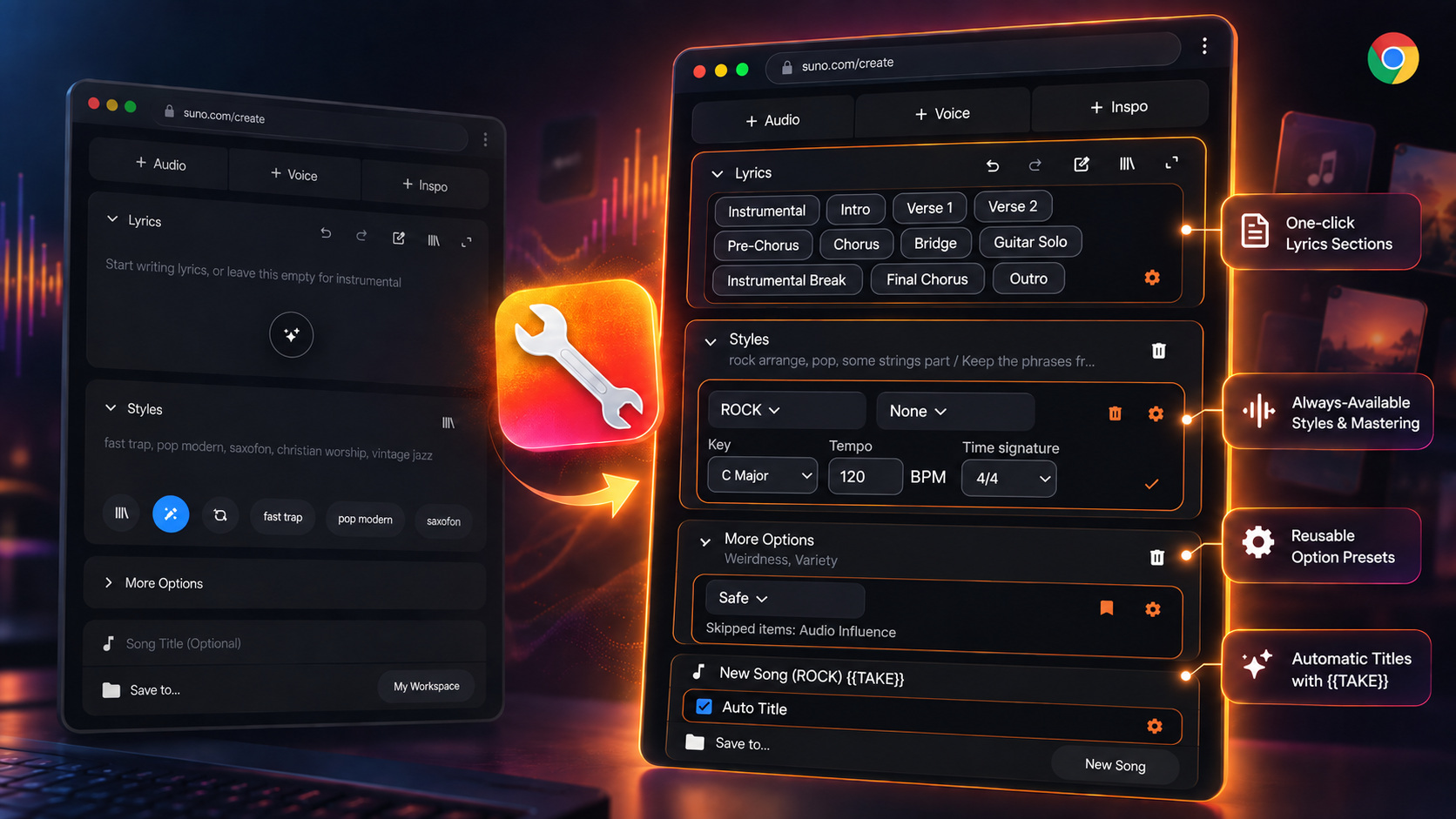
A local Chrome extension for the Advanced tab of Suno Create. It adds quick access to saved styles, your own mastering prompts, reusable advanced-option presets, and automatic song titles. Works with both English and Japanese Suno interfaces, detected automatically. Currently, other languages are not supported.
Installation
A pre-built release is available, so you can install and use it right away without needing Node.js or any build tools.
- Download suno-create-assistant.zip and extract it.
- In Google Chrome, navigate to
chrome://extensionsand enable Developer mode in the upper-right corner. - Click Load unpacked and select the extracted
suno-create-assistantdirectory. - Open Suno Create and select the Advanced tab.
After updating or reloading the extension, reload any open Suno tabs so they start a fresh content script.
Features
Lyrics tag palette
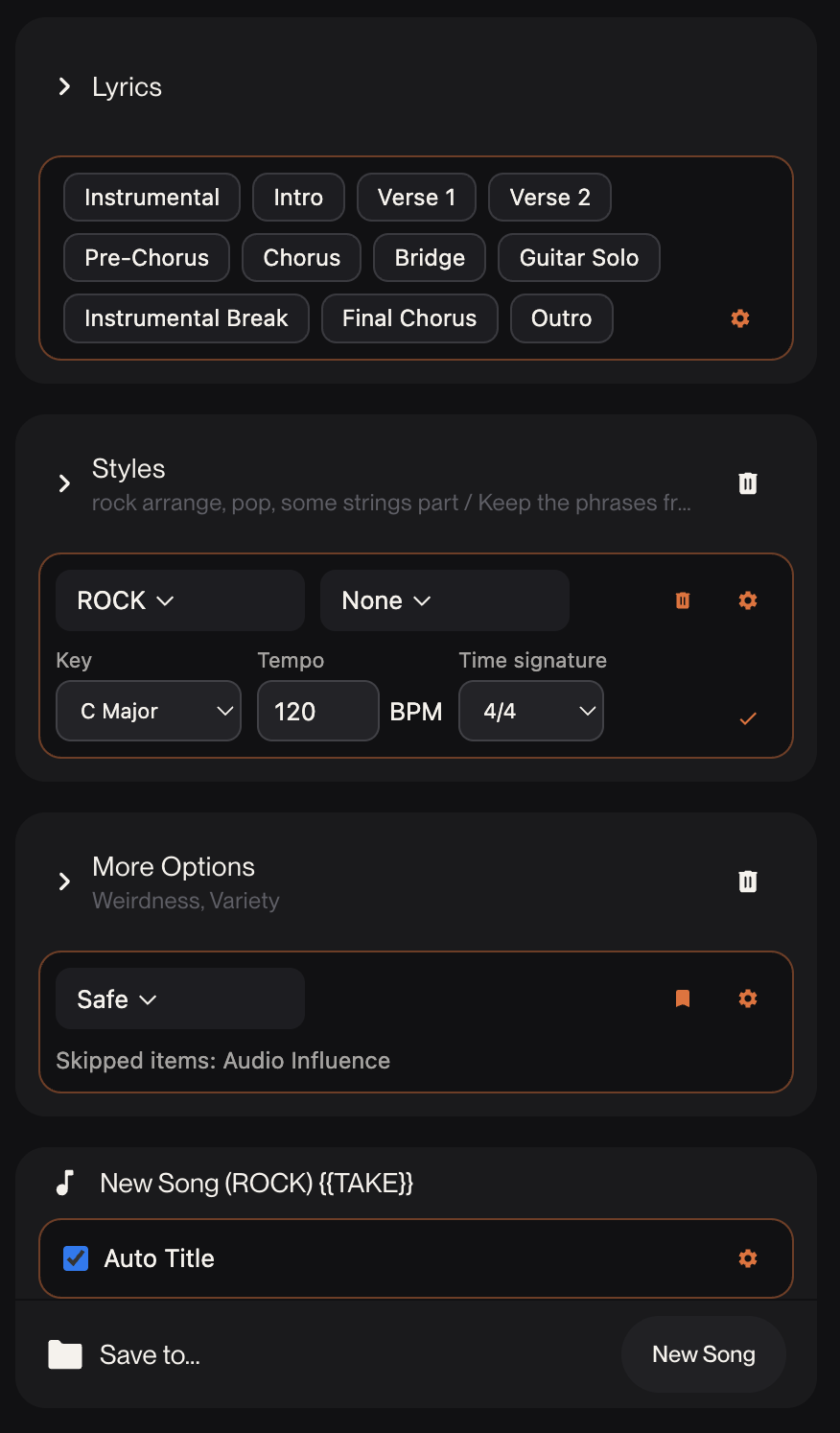
Directly under the Lyrics heading, the extension adds a row of buttons (Instrumental, Intro, Verse 1, Chorus, etc.) for quick insertion of song section tags.
- Clicking a tag button inserts it on its own line (e.g.
[Verse 1]) into the lyrics editor, automatically expanding the Lyrics section if it was closed, without losing your cursor position. - Edit, reorder, add, or delete tags (one per line) under Lyrics Tags in the settings dialog, or restore the defaults at any time.
Styles and mastering
Directly under the Style heading, the extension adds a Style dropdown and a Mastering dropdown that stay visible whether the section is open or closed.
- The Style dropdown can show your own custom style list, kept by the extension itself, alongside Suno's saved styles. Add, edit, and delete entries (name, prompt, and an optional Exclude value) under the Styles tab in the settings dialog.
- Which of the two sources the dropdown shows is set in that same Styles tab: "Own list and Suno's saved styles" (the default), "Own list only", or "Suno's saved styles only". Choosing "Own list only" stops the extension from ever opening Suno's "Saved Styles" dialog.
- Choose a saved style (from Suno or your own list) and, optionally, a mastering prompt of your own; both are written into the Style field on separate lines.
- Use the bookmark icon on the Style row to save the current base Style (without its mastering line). You can also save the current Exclude value with it; an explicitly saved empty value clears Exclude when selected, while a style without a saved Exclude value leaves it unchanged. Use the gear icon to manage the list. Mastering prompts are added, edited, or deleted from the Mastering Prompts tab in the settings dialog's sidebar.
- If you add, rename, or delete a saved style inside Suno, reopen the extension's dropdown to see the updated list.
- If the combined style and mastering text would exceed Suno's 1,000-character limit, nothing is changed and an error is shown instead.
Key and tempo
The orange-outlined Key & Tempo card sits directly below the Style controls. It reads explicit musical information from the visible Style prompt, including descriptions that Suno adds for an uploaded audio reference.
- Key, BPM, and time signature are detected automatically whenever the visible Style prompt changes. They are filled only when they can be identified unambiguously; conflicting values are never chosen automatically.
- When the Style already states a key, tempo, or time signature (for example
key of D Minor), changing that dropdown rewrites the phrase in the Style text right away, in its original wording:キーはE♭マイナーbecomesキーはF♯メジャー, andkey of D Minorbecomeskey of F Minor. A tempo is applied when you leave the field or press Enter, so typing160never writes16. The saved style stays selected. - A field the Style does not state is added as soon as you choose it: select a key or time signature, or enter a tempo from 30 to 300 BPM. The extension adds its own
Musical settings:line to the Style and updates that line afterwards. Available time signatures are 2/4, 3/4, 4/4, 5/4, 6/8, 7/8, 9/8, and 12/8. - A key or time signature that the Style states but that is not in the picker's list (for example
Cb Majoror11/16) is still shown as the current value. - When the
Musical settings:line is first added, the rest of your Style is left untouched, including its leading spaces and blank lines. - Setting a dropdown back to "Unselected" never deletes wording from your Style; a phrase you wrote yourself stays, and the dropdown goes back to showing it. Only a field in the extension's
Musical settings:line is removed (the line disappears once all three are unselected). - When you choose another saved style, its explicit key, tempo, or time signature takes precedence. Any field the style does not specify stays in place, so you can audition styles without losing other musical constraints.
- This feature reads text already visible in Suno; it does not analyze uploaded audio or send it anywhere.
Advanced-option presets
The Preset dropdown appears directly under the More Options heading, so it stays visible whether the section is open or closed. A preset can save any combination of: vocal gender, length, Max mode, weirdness, style influence, variation, audio influence, and personalization. Exclude is saved with an extension-managed style instead.
- Click Save Preset beside the dropdown to open a dialog pre-filled with Suno's current settings — this works even while More Options is collapsed. Choose which settings to include, adjust their values, and save.
- Use the gear icon beside the dropdown to edit or delete existing presets.
- Applying a preset changes only the settings it includes; Exclude is never changed by a preset. Reusing a take still restores its recorded Exclude value.
Recent workspace switcher (temporarily disabled)
The Recent Workspaces dropdown is temporarily hidden. Suno's current workspace breadcrumb navigates to its workspace index instead of opening the in-page chooser the feature uses. Use Suno's workspace navigation until an in-page chooser is available again.
Automatic titles and take numbers
Enable Auto title inside the title section to generate a title automatically from a template. The default is:
{{WORKSPACE}} ({{STYLE}}) {{TAKE}}Customize the template anytime under Song Title Format in the settings dialog. Available placeholders:
{{WORKSPACE}}— destination / workspace name{{STYLE}}— style name (orCustomif manually edited){{AUDIO}}— original song title (when remixing or referencing audio){{MODEL}}— model name (v6,v6-wild, etc.){{MASTERING}}— active mastering prompt name{{PRESET}}— active more-options preset name{{DATE}}— current date (defaultYYYY-MM-DD, supports format specifiers like{{DATE:YYYYMMDD}}){{TIME}}— current time (defaultHH:mm, supports format specifiers like{{TIME:HHmm}}){{TAKE}}— take number, incremented automatically ({{TAKE:3}}or{{TAKE:001}}for zero-padding like001)
When a title contains {{TAKE}} (or padded variants like {{TAKE:3}}), clicking Create (or using the shortcut below) fills in the next take number, submits, and then restores the template so it's ready for the next take. You can also type {{TAKE}} manually with Auto title disabled if you just want take numbering on your own titles.
Create shortcut
Press Cmd + Enter (macOS) or Ctrl + Enter (Windows/Linux) anywhere on the Suno Create page to trigger the Create button, no setup required.
Extension Settings menu
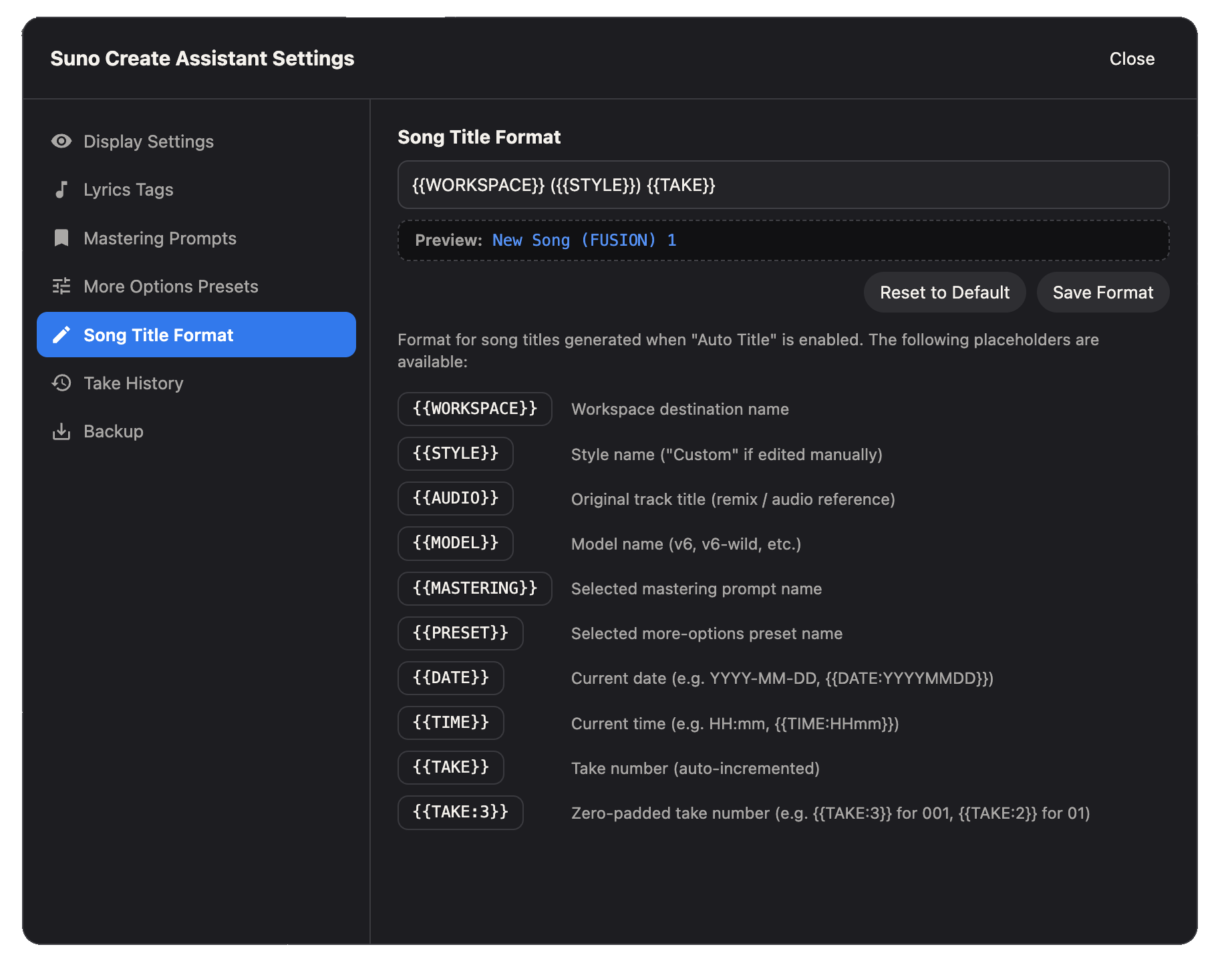
The extension adds an Extension Settings item with a gear icon to Suno's sidebar, just below Hooks. Click it to open the settings dialog, where you manage song title formats, display settings, your custom style list, mastering prompts, and presets.
Auto-collapsed sections
When you open the Advanced tab, the "Lyrics", "Styles", and "More Options" sections default to collapsed, since the extension's own controls stay visible either way. You can turn this off with the "Close lyrics, styles, and more options when opening the Advanced tab" checkbox under Display Settings in the settings dialog. Any section you manually reopen stays open while you keep working in it.
Take history and reuse parameters
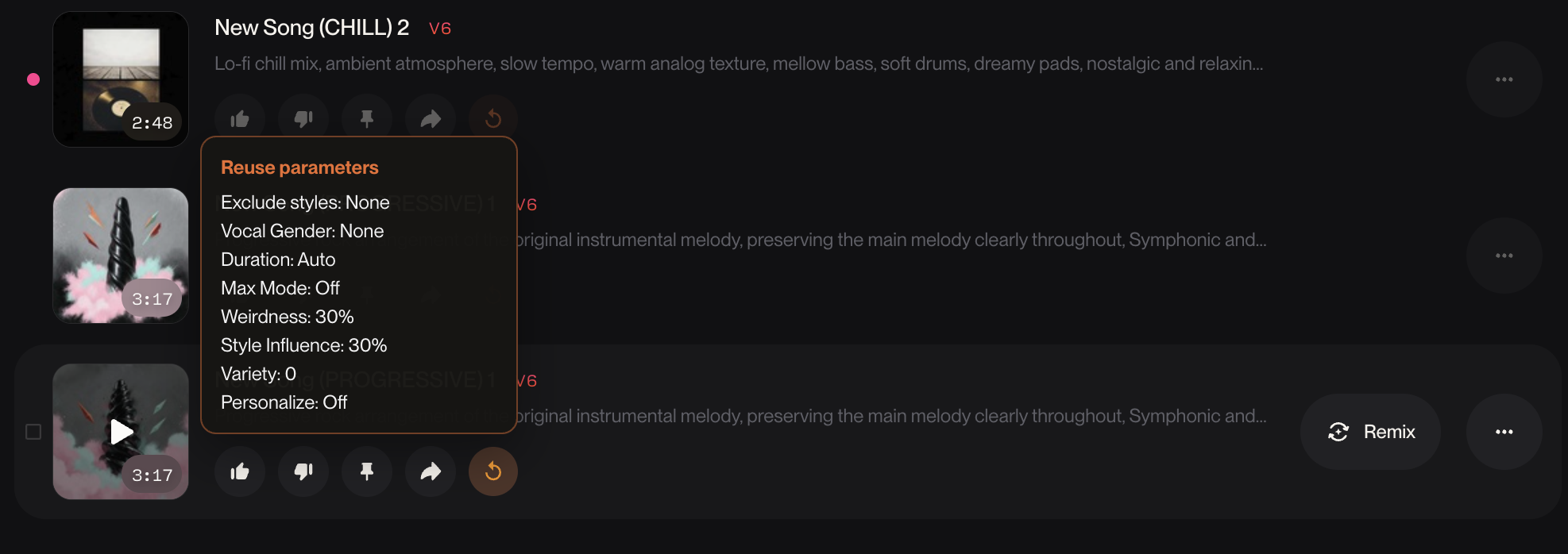
Every time you press Create, the extension automatically records the Style, Mastering, Preset, and More Options settings that were in effect at that moment. Once a matching clip appears in Suno's own clip list, a small reuse parameters button appears among its row actions (next to Like, Share, and so on) — click it to reapply that generation's More Options settings.
- Browse, restore, or delete past entries under Take History in the settings dialog.
- Save as preset turns a past entry's settings into a reusable preset.
- Only the More Options settings are reapplied — the Style field is left untouched, since Suno's own "Reuse prompt" action already covers reusing style text.
- A clip generated before you started using this feature, or one you navigate away from before it finishes generating, may not get a reuse button.
Backup (export / import)
Under Backup in the settings dialog, export all your settings — custom styles, mastering prompts, presets, lyrics tags, title format, and (optionally) take history — as a JSON file, or import a previously exported file. Importing replaces all current settings, so use it to move settings to another computer, recover from a lost Chrome profile, or keep your own copy under version control. Nothing is ever sent anywhere; the file is written and read entirely on your device.
Privacy
All your settings — your custom style list, mastering prompts, presets, take history, the Auto title preference, the title format, and take-number counters — are stored locally in your browser and never leave it. The extension does not call any private Suno API or send data to a developer-operated server, and it does not permanently store the saved-style prompts it reads from Suno's dialog. Exporting settings saves a file directly on your device; nothing is ever uploaded anywhere. See the Privacy Policy for complete details.
Disclaimer
This is an unofficial, independent extension and is not affiliated with, endorsed by, or sponsored by Suno, Inc. "Suno" is a registered trademark of Suno, Inc.
Because this extension operates by interacting directly with the Suno web interface, future updates, design overhauls, or specification changes made by Suno may cause some or all features of this extension to stop functioning.