
Under Development
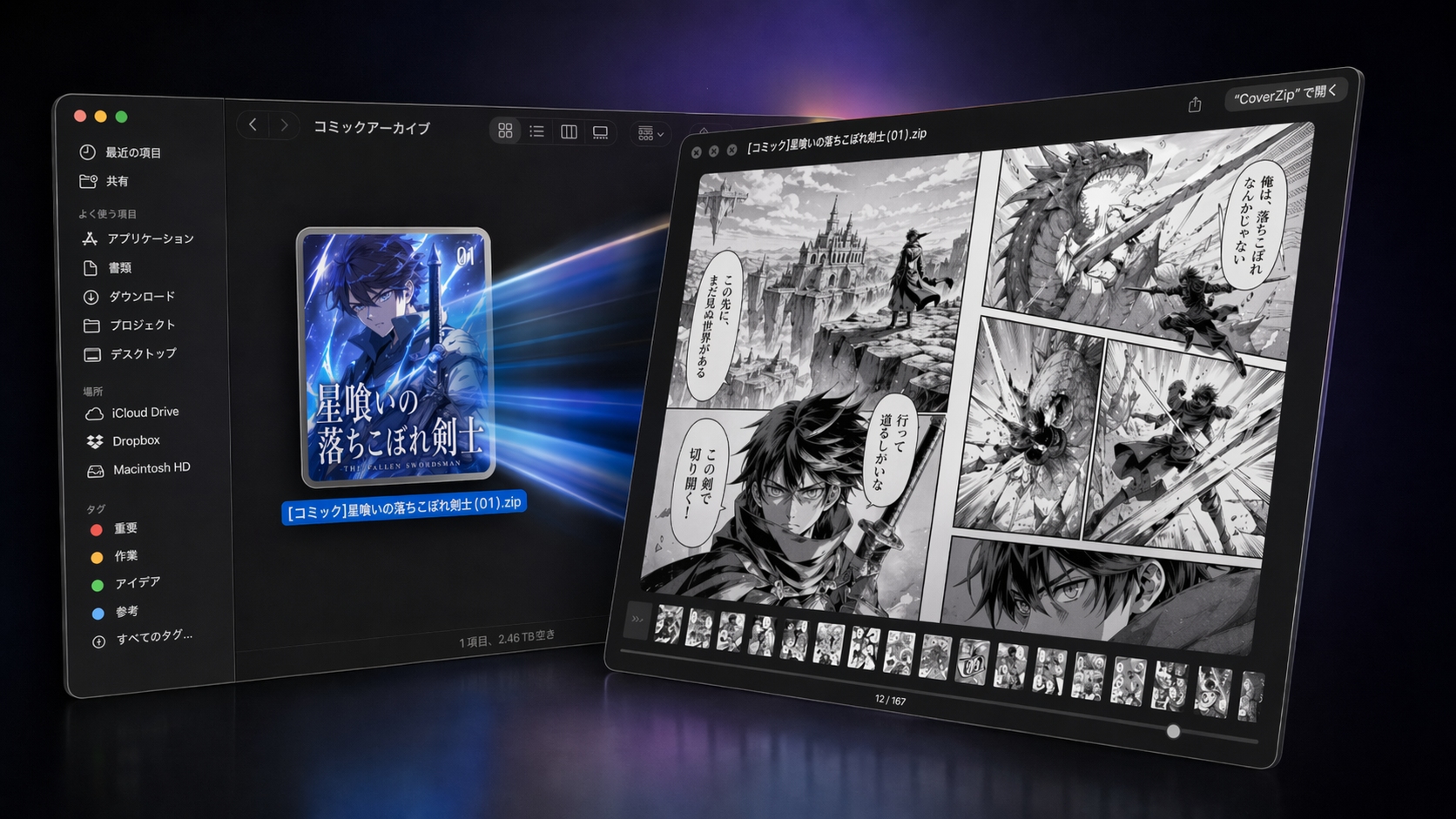
CoverZip is a macOS app designed for comfortably browsing comics and image collections stored in ZIP/RAR-based archives. Once installed, comic covers appear as icons in Finder, and you can open them instantly with the spacebar. Also folders can be opened with the spacebar to view the images inside them.
Features
Archive File Thumbnails (QuickLook Thumbnail)
Once CoverZip is installed, the first image inside a supported archive is displayed as its thumbnail in Finder. You can tell which comic it is at a glance without opening the file.
If the archive contains a file with a cover-like name (such as cover, front, or a name starting with 00), that image is shown preferentially.
Read Comics with the Spacebar (QuickLook Viewer)
Select a supported archive in Finder and press the spacebar to open CoverZip's comic viewer in QuickLook. There's no need to open the file in an app — you can flip through pages and check the contents right there.
Here's what you can do in the viewer. You can also change settings like view mode and reading direction from the right-click context menu.
- Page navigation is done by clicking the left or right side of the viewer, including the background outside the displayed page, by scrolling the mouse wheel up and down, or by using keyboard controls when the optional Finder QuickLook key helper is enabled. The cursor changes according to the side of the viewer under it. Without the helper, Finder captures arrow keys and changes the selected file.
- View mode can be set to "Single Page" (one page at a time) or "Spread" (two pages side by side). The "Auto" option automatically determines the layout based on image dimensions.
If the page pairing looks off in spread mode, select "Adjust Spread Alignment" from the menu to shift the pairing by one page.
- Reading direction can be switched between right-to-left (for Japanese manga) and left-to-right (for Western books).
- Page progress bar — move the cursor to the bottom edge of the image to reveal a fill-style progress bar; click or drag on it to jump to any page.
- Thumbnail strip — displays a list of page thumbnails at the bottom; click one to jump directly to that page. Drag its top edge to resize it, or drag it all the way down to hide it (same as pressing
L). - Slideshow — automatically advances pages at a set interval.
- Resume reading — your last viewed page and display settings are remembered for each archive (up to 100 recent entries).
Settings can be changed by right-clicking within the viewer or from the View menu.
Preview a Folder of Images
You don't need to zip your images first — select any folder containing images in Finder and press the spacebar to browse it in the same viewer described above, with the same controls, view modes, and reading history. Subfolders are included automatically, and images are sorted in natural order (so 2.jpg comes before 10.jpg) just like inside an archive. If a folder contains no images, QuickLook falls back to the standard Finder folder preview.
Dropping a folder onto the CoverZip Dock icon opens it in the built-in viewer as well.
Folder preview in Quick Look is provided by its own extension, separate from the one used for ZIP/RAR archives. If you'd rather use a different app's folder preview (or none), open System Settings > General > Login Items & Extensions > Quick Look and turn off "coverZipFolderViewer" — this only affects the spacebar preview for folders; ZIP/RAR previews and the built-in viewer keep working either way.
Double-Click to Open in Built-in Viewer or Another App (Routing)
If you associate CoverZip with archive files, double-clicking a ZIP, CBZ, RAR, or CBR archive will automatically route it to the appropriate app based on the filename.
For example, you can set it up like this:
- If a parent folder name contains "Comics", open in CoverZip's built-in viewer
- If the filename contains "vol", open in CoverZip's built-in viewer
- Otherwise, open the archive with an archive extraction app
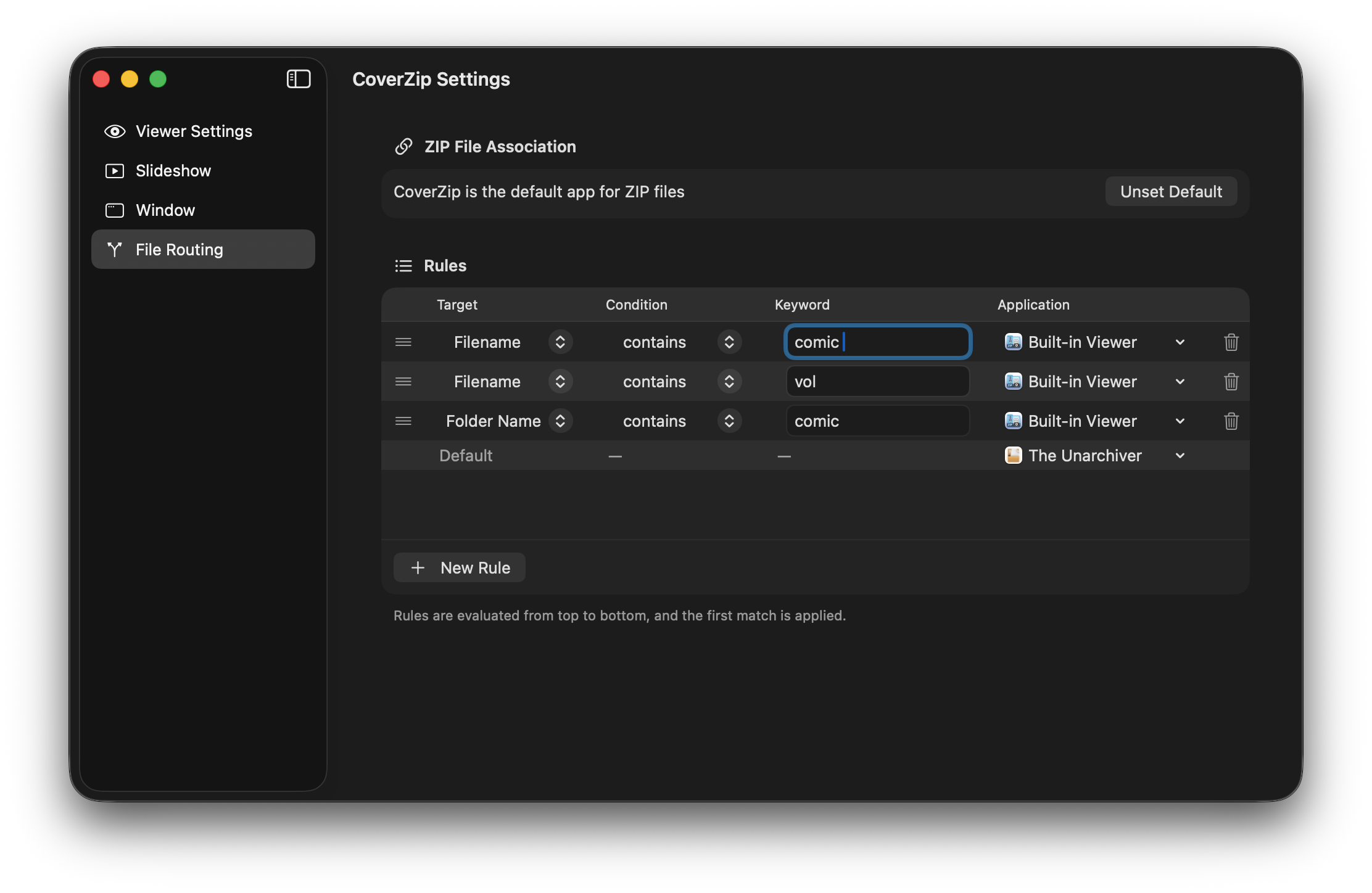
When the routing target is the "Built-in Viewer", CoverZip continues running. When an external app is specified, CoverZip automatically quits after launching that app.
You can also use Option+Cmd+O (menu: Open in Built-in Viewer...) to open an archive directly in the built-in viewer, regardless of routing settings.
Keyboard Controls
In the built-in viewer, the following keyboard controls are available in addition to clicking and scrolling. When the optional Finder QuickLook key helper is enabled, the same navigation and display keys are also available in Finder QuickLook, except for the Space shortcuts. Forward/backward directions for arrow keys automatically adapt to the reading direction setting (right-to-left / left-to-right).
| Key | Action |
|---|---|
← / → |
Move one page (in right-to-left mode, ← goes to the next page) |
Space / Shift + Space |
Next / previous page |
Shift + ← / Shift + →, Page Down / Page Up |
Jump 10 pages |
Cmd + ← / Cmd + →, Home / End |
Go to first / last page |
0 / 1 / 2 |
Switch view mode to Auto / Single Page / Spread |
T |
Toggle spread page offset correction |
L |
Show / hide the thumbnail list |
S |
Start / stop slideshow |
You can also switch view modes and change reading direction from the View menu or the right-click context menu.
Installation
- Build the source code in Xcode and place CoverZip.app in your Applications folder.
- Launch CoverZip once.
- Open System Settings → Privacy & Security → Extensions → QuickLook and enable both "CoverZip Thumbnail Extension" and "CoverZip Preview Extension".
After enabling, selecting a supported archive in Finder will show its thumbnail, and pressing the spacebar will launch the comic viewer.
To use arrow keys in the Finder QuickLook viewer, open CoverZip Settings → Viewer and enable Use arrow keys for pages in Finder Quick Look. macOS will require the bundled helper app to be registered as a login item and allowed in System Settings → Privacy & Security → Accessibility.
For troubleshooting Finder QuickLook key input, hold Shift while right-clicking inside the QuickLook viewer. The context menu shows debug information such as the viewer version, build number, current reading direction, and key helper status.
You can open the online manual from Help → CoverZip Manual.
Configuring Routing Rules
CoverZip doesn't open Settings automatically when it launches. Open Settings with Cmd+, or from the menu CoverZip → Settings....
The Settings window uses a macOS sidebar layout with these tabs:
Viewer: Reading direction, view mode, thumbnail visibility, page transition, Finder QuickLook arrow-key helper, and decode cache policySlideshow: Page auto-advance intervalWindow: Restore preview window size/position and reset saved frameUpdate: Current version, manual update check, automatic update checks, and the releases pageFile Routing: Rule-based routing and archive default-app association
Rules are evaluated from top to bottom, and the first match is used.
Match Modes
| Mode | Description | Example |
|---|---|---|
| Contains | Whether the filename contains the specified string | comic → matches comic01.zip |
| Starts With | Whether the filename starts with the specified string | vol → matches vol3.zip |
| Ends With | Whether the filename ends with the specified string | backup → matches data_backup.zip |
| Wildcard | Pattern using * (any string) and ? (any single character) |
vol* → matches vol1.zip, vol_special.zip |
| Regex | Pattern matching with regular expressions | ^backup_\d+$ → matches backup_123.zip |
Keyword Types
You can choose the matching target: "Filename", "Folder Name (parent folder)", or "File Extension".
Specifying the Target App
The following formats can be used to specify an app:
Built-in Viewer: Opens in CoverZip's built-in viewer- App name (e.g.,
Archive Utility): Opens with the specified app
Performance Optimizations
Here are the techniques CoverZip's viewer uses to deliver a fast reading experience.
Instant Display, Instant Page Turns When opening an archive, the viewer first quickly retrieves the page list metadata. It then prioritizes decoding the first page ahead of all others, while the remaining pages are processed as read-ahead. The first page appears immediately after opening the file, and subsequent pages can be turned without waiting.
Read-Ahead and Caching Pages adjacent to the current one are read ahead in the background, minimizing delays when turning pages. In single-page mode, 5 pages ahead and 1 page behind are prefetched; in spread mode, 3 spreads ahead and 1 behind. Up to 32 previously displayed images are kept in memory, making it fast to revisit pages.
Smooth Page Transitions with GPU The next page's rendering is pre-processed on the GPU, allowing page transitions to complete instantaneously.
Progressive Display When displaying a page, the viewer uses GPU pre-rendered data, high-quality cache, or low-quality cache, in that order of priority. Only when no cache is available does it asynchronously fetch a low-resolution image for interim display, then replace it with high-quality rendering later. If read-ahead has caught up, high quality is shown from the start. When flipping through pages rapidly, you may briefly see lower-quality images.
Automatic Cache Release Under Memory Pressure When system memory runs low, caches are automatically released to minimize impact on other apps.
Supported File Formats
CoverZip supports ZIP-based archives (.zip, .cbz), RAR-based archives (.rar, .cbr), and plain folders of images (see Preview a Folder of Images). It recognizes common image formats, including JPEG, PNG, GIF, BMP, TIFF, and WebP.
Password-protected ZIP/RAR files, multi-volume RAR archives, Zip64 format, and ZIP compression methods other than DEFLATE are not supported. Very large RAR entries may be skipped to keep Quick Look memory usage bounded, and solid RAR archives can be slower to browse. Folder thumbnails in Finder are not generated (only archive files get a cover thumbnail); folder support is limited to the spacebar viewer and the built-in viewer.
Automatic Updates
CoverZip uses Sparkle for automatic updates.
- Startup check: Checks for updates automatically when the app launches.
- Scheduled check: Rechecks every 24 hours in the background.
- Manual check: Open the Update tab in Settings or choose Check for Updates... from the CoverZip app menu.
- Updates are downloaded and installed after you confirm.
System Requirements
- macOS 14.0 (Sonoma) or later
- Supports both Intel Mac and Apple Silicon Mac
Known Issues
- Arrow keys in the QuickLook viewer require the optional key helper and Accessibility permission. If the helper is disabled or permission is not granted, the host app (e.g. Finder) captures key input instead. The key helper works regardless of which app triggered the QuickLook preview.
- If you select a different archive in Finder while the QuickLook viewer is still open, mouse click page navigation will likely stop working. Pressing the spacebar to reopen the window will restore click navigation. Mouse wheel scrolling continues to work normally.