

In Development
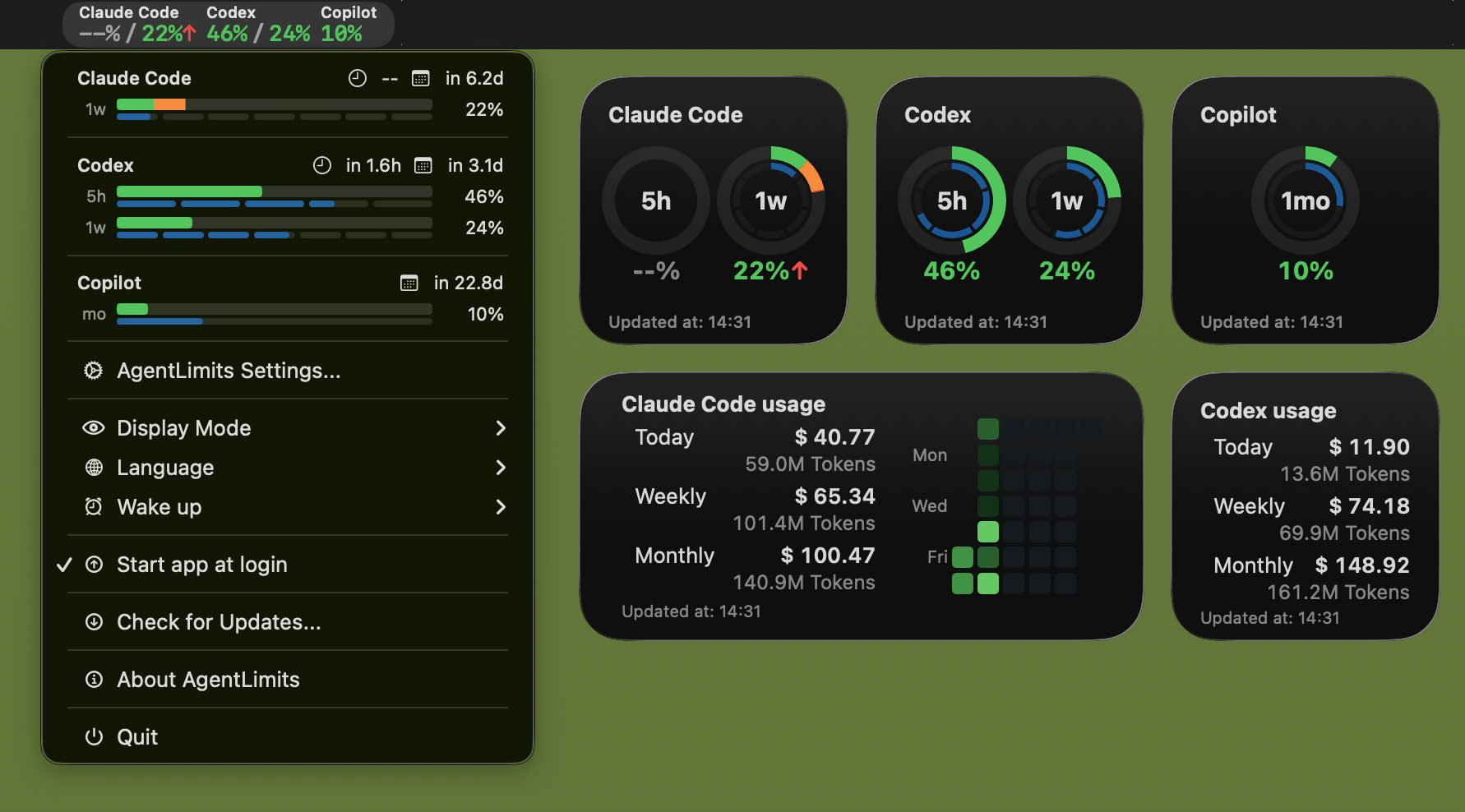
AgentLimits is a macOS Sonoma+ menu bar app with Notification Center widgets. It shows usage limits for ChatGPT Codex / Claude Code (5-hour + weekly, or monthly when the provider returns a monthly window), GitHub Copilot (monthly premium requests), and ccusage token usage. Custom usage scripts also let you track any other service's usage (e.g. Cursor, Google Antigravity) the same way — see Custom Usage Script Authoring.
Download
Download the latest build: Download
Quick Start (First-Time Setup)
- Run AgentLimits.
- Add widgets in Notification Center.
- Open AgentLimits Settings... from the menu bar.
- In Usage, choose Codex, Claude Code, or Copilot, set refresh interval (1–10 minutes), open the bottom login panel (
▲), then sign in. - Use the menu bar Display Mode to switch Used/Remaining, and Refresh Now for manual updates.
What It Tracks
- Usage limits (Codex / Claude Code): 5-hour + weekly usage, or monthly usage when the provider returns a monthly window, via internal APIs.
- If Codex temporarily returns only a weekly window, AgentLimits keeps the 5-hour slot unavailable and displays the returned value in the weekly slot.
- Codex:
https://chatgpt.com/backend-api/wham/usage - Claude Code:
https://claude.ai/api/organizations/{orgId}/usage
- Usage limits (GitHub Copilot): Monthly premium interaction quota via entitlement API.
- Copilot:
https://github.com/github-copilot/chat/entitlement
- Copilot:
- Custom usage services: Run a user-selected executable that prints an AgentLimits JSON snapshot to stdout. Each service may provide one or two unique
5h,1w, or1monthwindows. - Token usage (ccusage): daily/weekly/monthly tokens and cost via CLI.
- Codex:
npx -y ccusage@latest codex daily - Claude Code:
npx -y ccusage@latest claude daily - The command is editable per provider in Settings — swap in your own ccusage-compatible script (e.g. one that merges usage across machines). Use
{{since}}in the command to insert the current month's start date; leave the field empty to use the generated default.
- Codex:
- Premium request usage (Copilot): daily premium request count and cost via WebView.
- API:
https://github.com/settings/billing/usage_table(fetched automatically with Copilot usage)
- API:
Menu Bar Display
- Two-line layout per provider in the icon area
- Line 1: provider name
- Line 2:
X% / Y%(5-hour / weekly) - For monthly-only providers such as Copilot or some Codex plans:
X%(monthly)
- Display mode: Used or Remaining (shared across app and widgets)
- Status colors are based on pacemaker comparison when available (colors are configurable in Notification settings)
- Status colors in the menu bar are automatically darkened or lightened to match the current menu bar text color.
- Pacemaker indicator: optionally shows
<used>%↑when over pace - Toggle icon visibility per provider in Usage settings
- Hide menu bar icon: completely hides the menu bar icon. While hidden, double-click the app icon in Finder (or open via Spotlight /
open -a AgentLimits) while it is still running to temporarily show the icon and open Settings. Closing the Settings window hides the icon again. - Service display order (built-in and custom) is configurable in Usage settings (Display Order)
Menu Dashboard
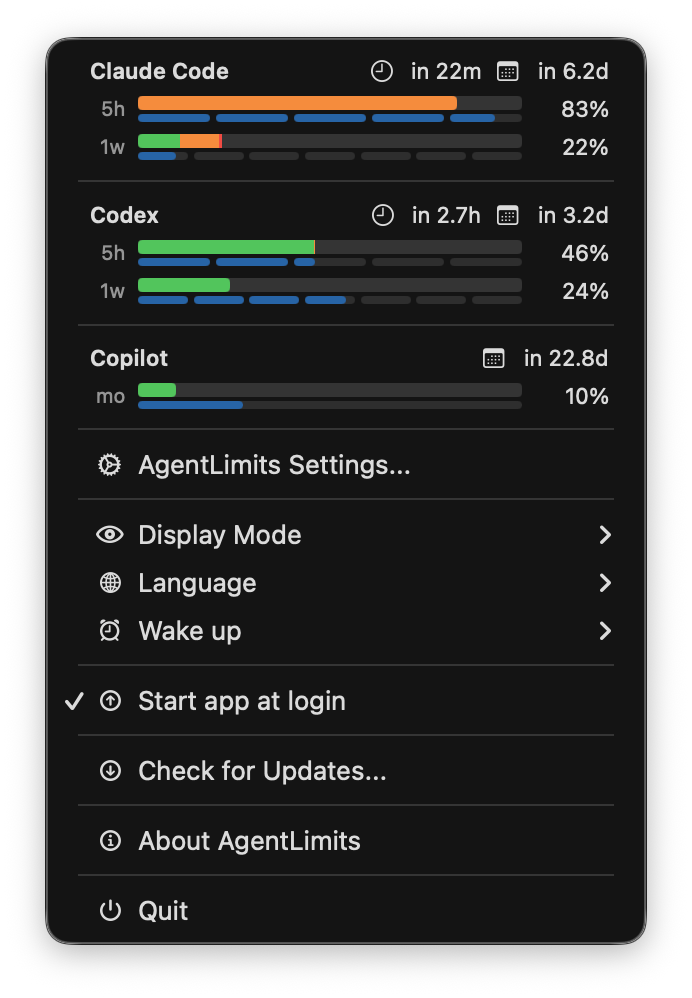
When you open the menu bar menu, a dashboard appears at the top showing per-provider usage at a glance:
- Header: provider name · remaining time (5h window) · days until weekly reset, or monthly reset for monthly-only providers
- Usage bar: linear progress bar color-coded by usage level; when pacemaker is exceeded, the bar is segmented (green → orange → red) matching the widget donut ring behavior
- Pacemaker bar: divided into time segments (5h: 5 segments, weekly: 7 segments, monthly: single continuous bar) with gaps, matching the widget inner ring
- Clicking a dashboard row opens the provider's usage page in the browser. A custom service opens its configured HTTP/HTTPS URL, or its settings when no URL is configured.
- Dashboard visibility is configurable per provider in Usage settings (Show dashboard in menu)
- Menu also includes: Display Mode, Language (System or any bundled translation), Wake Up → Run Now, Start app at login, and Check for Updates...
- With System selected, AgentLimits uses a supported OS language and falls back to English when the OS language is not available.
Pacemaker
Pacemaker shows a time-based usage benchmark to help you stay on track.
- Calculation: Elapsed percentage of the usage window (e.g., 50% = halfway through the 5h or weekly window)
- Comparison: Green = on track or ahead, Orange = slightly over pace, Red = 10%+ over pace
- Menu Bar: Shows
<used>% (<pacemaker>)%with toggleable pacemaker value display (Pacemaker settings) - Widget: Outer ring = actual usage, inner ring = pacemaker percentage (shown when pacemaker data is available)
- When usage exceeds pacemaker in used mode only, the outer ring is segmented and color-coded (green → orange → red) to show warning/danger zones (toggleable in Pacemaker settings, enabled by default)
- Thresholds: Warning/danger delta thresholds are configurable in Pacemaker settings
- Colors: Pacemaker ring/text colors are configurable in Pacemaker settings
Widgets
Usage Widgets (Codex / Claude Code)
- Dual donut gauge: 5-hour and weekly windows side by side
- If Codex provides only the weekly window, the 5-hour donut remains unavailable while the weekly donut continues to show usage.
- Some Codex plans may show a single centered monthly donut when the Codex API returns only a monthly window
- Color-coded percentage based on usage level and display mode
- Update time shown as
HH:mm(or--:--if older than 24h)
Usage Widget (GitHub Copilot)
- Single centered donut gauge: monthly premium interaction quota
- Pacemaker inner ring divided into weekly segments (4–5 segments based on billing period)
- Center label:
1mo - Color-coded percentage based on usage level and display mode
- Update time shown as
HH:mm(or--:--if older than 24h)
Custom Usage Widget
- Add the single Custom Usage widget kind, then right-click it and choose Edit "Custom Usage"... to select a service.
- Each widget instance can select a different custom service.
- Small and medium widgets show one or two windows in
5h→1w→1monthorder and reuse the usage colors, Used/Remaining mode, pacemaker, and update time. - A window can set its own
label. Custom labels are used in the widget, dashboard, and notification settings; their pacemaker ring is continuous rather than divided. - Windows without
resetAtordurationSeconds, or withisPacemakerEnabled: false, show usage without a pacemaker ring or comparison indicator. - If the selected service is deleted, the widget shows that the service is unavailable.
Token Usage Widgets (Codex / Claude Code)
- Small: today / this week / this month summary (cost + tokens)
- Medium: summary + GitHub-style heatmap
- 7 rows (Sun–Sat) × 4–6 columns (weeks)
- 5 levels by quartile distribution
- Weekday labels (Mon, Wed, Fri)
- Desktop pinned mode support (accented / grayscale)
- Widget tap action is configurable (default opens
https://ccusage.com/)
Settings Guide
Usage
- Open Usage.
- Select Codex, Claude Code, or Copilot.
- Choose refresh interval (1–10 minutes).
- Toggle Show in menu bar to show the usage percentage in the icon area.
- Toggle Show dashboard in menu to show/hide the provider's row in the menu dashboard.
- Drag rows in Display Order to change the order of providers in the menu bar icon and dashboard.
- Click the bottom login bar (
▲) to expand the embedded WebView panel. - Sign in via the embedded WebView (chatgpt.com / claude.ai / github.com).
- Use Clear Data to remove login data, website storage, and cached usage snapshots if sign-in gets stuck or you want to reset login history.
Wake Up
- Open Wake Up.
- Select provider (Codex / Claude Code). Note: Copilot is not supported.
- Enable schedule.
- Choose hours to run (0–23).
- Use Test Now to verify CLI execution.
Notification
- Open Notification.
- Request notification permission (first time only).
- Select a built-in or custom service from the service menu.
- Configure thresholds for each available semantic window (5-hour, weekly, or monthly).
- Adjust usage colors (donut + status colors) if needed.
Pacemaker
- Open Pacemaker.
- Toggle the menu bar pacemaker value display.
- Toggle the widget ring warning segments (color-coded segments when exceeding pacemaker).
- Adjust pacemaker warning/danger deltas.
- Customize pacemaker ring/text colors.
ccusage
- Open ccusage.
- Select provider (Codex / Claude Code).
- Choose refresh interval (1–10 minutes).
- Enable periodic fetch and set additional CLI args if needed.
- Use Test Now to verify CLI execution.
- For Copilot: billing data is fetched automatically when Copilot usage is refreshed — just enable the toggle.
Custom Usage
- Open Custom Usage and add a service.
- Enter a display name and a permanent lowercase Provider ID matching
^[a-z0-9][a-z0-9_-]{0,62}$. - Select an executable regular file. AgentLimits runs the file directly from its parent folder; arguments and free-form shell commands are not accepted.
- Optionally add an HTTP/HTTPS website, then choose automatic refresh, menu bar, and dashboard visibility.
- Use Run Test to check the configured executable.
- Custom services use the Usage refresh interval. Manual tests and widget refresh taps still run when automatic refresh is disabled.
Update
- Open Update.
- Review the current version and the time of the last update check.
- Choose Check Now to look for an update manually.
- Toggle automatic update checks.
- Open the releases page when you need release details.
Advanced
- Open Advanced.
- Set full paths for
codex,claude,npxif needed (blank = resolve via PATH). - Review PATH resolution results.
- Choose widget tap action (open website / refresh data).
- Toggle Hide menu bar icon to completely hide the icon from the menu bar. To access settings while hidden, double-click the app icon while it is still running.
- Copy the bundled status line script path if needed.
Custom Usage Script Authoring
Creating a Custom Usage Script
To create a script for a service that is not built in, ask an AI coding agent to create it. Give the agent scripts/CUSTOM_USAGE_SCRIPT_GUIDE.md, which defines the required decisions, execution constraints, JSON contract, and validation rules. The agent can then implement and test an executable for the chosen service. Samples are available at scripts/cursor_usage.py and scripts/antigravity_usage.py.
If you build a script for a service not yet covered here, please open a pull request to add it under scripts/ as a new sample — other users can then adapt it to their own setup.
JSON Snapshot Output
The executable must exit with code 0 within 60 seconds and print exactly one JSON object to stdout. Write diagnostic logs to stderr.
Example stdout:
{
  "schemaVersion": 1,
  "provider": "cursor",
  "fetchedAt": "2026-08-23T12:34:56Z",
  "windows": [
    {
      "kind": "5h",
      "label": "Fast Requests",
      "title": "Fast Request Window",
      "usedPercent": 42.5,
      "resetAt": "2026-08-23T15:00:00Z",
      "durationSeconds": 18000,
      "usedCount": 425,
      "limitCount": 1000
    },
    {
      "kind": "1w",
      "usedPercent": 68,
      "resetAt": "2026-08-30T00:00:00Z",
      "durationSeconds": 604800
    }
  ]
}
fetchedAt requires a timezone-aware ISO 8601 value. kind also accepts custom for a window that doesn't fit 5h / 1w / 1month — an arbitrary or expiry-less window (it always sorts last, and its default label without label is •). label, title, resetAt, durationSeconds, and isPacemakerEnabled are optional. label is the short label shown in the donut center and dashboard row; title is a longer heading shown in the widget's detail column, the notification settings section, and notification bodies — the two are independent. An omitted or blank title falls back to label, and an omitted or blank label falls back to the kind label; pacemaker is enabled by default. When supplied, resetAt must be timezone-aware ISO 8601 and durationSeconds must be positive. usedCount and limitCount are optional, but must be supplied together as nonnegative integers with limitCount > 0. Unknown fields are allowed. A no-expiry window re-sends an enabled threshold notification only after usage falls below the threshold and exceeds it again. stdout is limited to 256 KiB and stderr to 64 KiB. Invalid output never overwrites the last successful snapshot.
Wake Up (CLI Scheduler)
- Runs scheduled commands:
codex exec --skip-git-repo-check "hello"claude -p "hello"
- LaunchAgent plist:
~/Library/LaunchAgents/com.dmng.agentlimit.wakeup-*.plist - Logs:
/tmp/agentlimit-wakeup-*.log - Additional CLI arguments are supported per provider.
Claude Code Status Line Script

- Bundled script for Claude Code status line integration (path shown in Advanced → Bundled Scripts)
- Reads Claude Code usage snapshot + App Group settings (display mode, language, thresholds, colors)
- Outputs a single line with 5-hour/weekly usage, reset times, and update time
- Options:
-ja,-en,-r(remaining),-u(used),-p(pacemaker),-i(usage + pacemaker inline),-d(debug) - Requires
jq(brew install jq)
Advanced: Storage (App Group)
Snapshots are stored in the App Group container:
~/Library/Group Containers/group.com.dmng.agentlimit/Library/Application Support/AgentLimit/
├── usage_snapshot.json
├── usage_snapshot_claude.json
├── usage_snapshot_copilot.json
├── usage_snapshot_custom_<provider>.json
├── token_usage_codex.json
├── token_usage_claude.json
└── token_usage_copilot.json
Notes / Troubleshooting
- Internal APIs may change without notice.
- ccusage output changes may break parsing.
- Widget refresh can be throttled by macOS.
- Threshold notifications require permission.
- Built-in CLI execution uses the user login shell. Custom usage executables run directly. Both prefix PATH with
/opt/homebrew/bin:/usr/local/bin:$HOME/.local/bin:$PATH. - Custom service stdout must contain only the snapshot JSON. Send diagnostic logs to stderr. On failure, AgentLimits keeps the last successful value and shows the latest attempt, success time, and error in settings and the menu dashboard.
- Full-path overrides in Advanced take precedence.
- Claude Code logins may require multiple attempts.
- The Claude Code status line script requires
jq. - Settings window minimum height is
620to keep the bottom login panel visible.
Automatic Updates
AgentLimits uses Sparkle for automatic updates.
- Startup check: Checks for updates automatically when the app launches.
- Scheduled check: Rechecks every 24 hours in the background.
- Manual check: Open the Update tab in Settings or choose Check for Updates... from the menu bar menu.
- Updates are downloaded and installed with one click after you confirm.