
A macOS app that runs an AI-hosted radio show using your Apple Music, YouTube Music, or Spotify playlists.
AI writes the script, two hosts read it aloud, and it blends with music in real time.
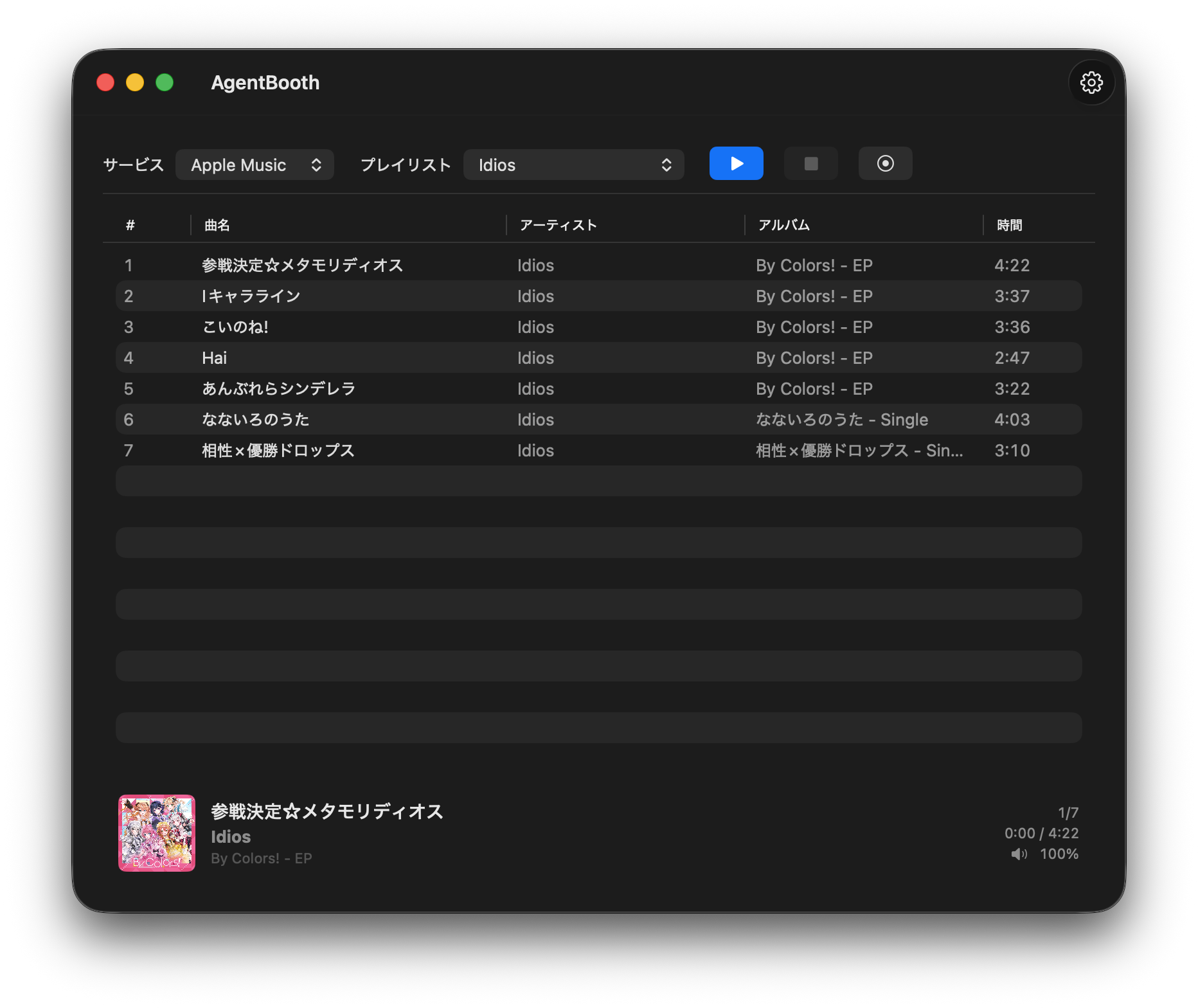
Click the image to watch the demo video
Requirements
- macOS 14 (Sonoma) or later
- One AI CLI for script generation (install at least one):
claude(Claude Code)geminicodex(ChatGPT Codex)copilot
- Gemini API Key (used for text-to-speech — free at Google AI Studio)
Quick Start
- Launch the app (first time: right-click → Open)
- Open Settings → Generation & TTS Connection
- Add a Gemini TTS credential set with your API Key (free at Google AI Studio)
- Choose an AI in CLI (e.g.
claude) - Close Settings, choose a playlist on the main screen, and press Start
Apple Music works immediately. YouTube Music and Spotify require signing in first (→ How to Use).

Tracks fetched from playlists are limited to a maximum of 30.
Settings Guide
Open Settings from the toolbar and configure the sidebar sections.
Profiles
Profiles save the show experience as reusable presets. Use Profile Management to create, duplicate, rename, delete, and switch profiles. The active profile is also available from the main toolbar and cannot be changed while a show is running.
Profiles include:
- Show name, frequency/channel, location, and host names
- Voice names, script direction, scene direction, and time-based presets
- Overlap mode, music/talk volume, fades, and maximum track duration
- Bed BGM, jingles, selected audio assets, and BGM/jingle volume
Music service login, TTS credentials, script generation CLI, and recording output are shared app settings and do not change when switching profiles.
Generation & TTS Connection (configure this first)
The app cannot start without the API Key and CLI set.
| Field | Description |
|---|---|
| Gemini TTS credential sets | One or more API key + model pairs. The app tries usable sets in order. Defaults to gemini-3.8-flash-tts; gemini-3.8-flash-lite-tts and the older gemini-2.5-*-preview-tts / gemini-3.1-flash-tts-preview models also work |
| CLI | AI CLI to use for script generation (claude / gemini / codex / copilot) |
| CLI Model | Model name for the CLI (leave blank to use the CLI's default) |
Service
| Field | Description |
|---|---|
| Default Service | Music service selected by default on launch |
| Sign in to YouTube Music | Open the embedded browser to log in to YouTube Music |
| Sign in to Spotify | Open the embedded browser to log in to Spotify |
| User Agent | Optional YouTube Music user agent override. Leave blank to use the WKWebView default |
Program Info
| Field | Description |
|---|---|
| Show Name | Name of the radio show, used in script generation |
| Frequency / Channel | e.g. 77.5 FM — used to set the mood of the script |
| Location Name | Optional area name used in script generation. When set, the CLI may lightly mention current weather if it can verify it |
| Male Host Name | Display name for the male personality |
| Female Host Name | Display name for the female personality |
Voice & Direction
| Field | Description |
|---|---|
| Male Voice | Voice name for the male host (e.g. Charon) |
| Female Voice | Voice name for the female host (e.g. Kore) |
| Script Direction | Content and topic guidance for script generation (e.g. "focus on new releases, mention artist background"). If it specifies a time of day such as morning or night, that program time takes priority over the real local hour |
| Scene Direction | Voice-acting and delivery guidance for TTS (e.g. "late night, quiet tone") |
| Time-Based Presets | Optional delivery directions for early morning, morning, afternoon, evening, night, and late night. The matching preset is appended to Scene Direction for TTS |
Script prompts automatically include the local hour, weekday, month, and season so generated talk can reflect the time of day. If Script Direction explicitly sets a different time of day, that instruction is treated as the show's intended time and conflicting real-time expressions are avoided. Weather is not fetched by AgentBooth itself; it is only suggested to the selected CLI when a location name is set.
Music Playback
Balance between music and talk. Defaults work without changes.
| Field | Description |
|---|---|
| Overlap Mode | Whether music and talk overlap or stay separated (see below) |
| Script Generation Mode | On-demand (default) or pre-generate with review (see below) |
| Normal Volume | Base music volume (0–100) |
| Talk Volume | Music volume while talk is playing (0–100). Lower = quieter music |
| Fade Duration | Seconds to smoothly ramp volume up or down |
| Music Lead Seconds | Seconds before talk ends to start fading in the next track |
| Talk Start Before End Seconds | Seconds before a track ends to start outro talk |
| Max Playback Duration | Maximum seconds per track (0 = unlimited) |
Music fades also apply when overlap mode is off and a track is stopped before its natural end. Pausing the show pauses an in-progress fade at its current level and resumes it without counting the paused time.
Optional BGM and jingles can add a more radio-like sound. Bed BGM loops only during talk sections where no external track is playing, and fades out before a music track starts. Jingles play only before the opening and/or closing when enabled.
| Field | Description |
|---|---|
| Enable Bed BGM | Loop a selected audio file, or a random audio file from a selected folder, under standalone talk sections |
| Use Opening Jingle | Play the selected opening jingle before the opening talk |
| Use Closing Jingle | Play the selected closing jingle before the closing talk |
| Bed BGM / Opening Jingle / Closing Jingle | Click Select to choose either an audio file or a folder. The dialog reopens at the previous selection location, and folders are sampled randomly at playback time |
| Bed Volume | Volume for the bed BGM |
| Jingle Volume | Volume for jingles |
| Bed Fade Out Seconds | Fade duration used when the bed BGM stops |
Recording
Configure if you want to record the show.
| Field | Description |
|---|---|
| Output Directory | Folder for recording files. Defaults to ~/Music/AgentBooth/ |
Recording captures system audio. A Screen Recording permission prompt appears on first use. System notifications and audio from other apps may also be captured — it is recommended to turn off notifications while recording.
Updates
| Field | Description |
|---|---|
| Current Version | Installed version and build number |
| Last Checked | When the last update check ran |
| Check Now | Manually trigger an update check |
| Automatically check for updates | Enable or disable once-per-day background checks |
You can also check for updates from the AgentBooth menu → Check for Updates….
How to Use
Common
- Set API Key and CLI in the Text-to-Speech tab
Gemini API keys can be obtained for free at Google AI Studio. You can set up multiple combinations of API keys and models, which will be tried in order from the top. This is useful for purposes such as using a paid tier only after the free tier API limit has been reached.
- Select the AI CLI to be used for script generation.
The Gemini CLI can be started for free. Additionally, you can configure any external CLI of your choice, such as when you want to use a local LLM.
Apple Music
- Select Apple Music as the service on the main screen
- Choose a playlist
- Press Start
A macOS Automation permission dialog appears on first launch. Click OK to allow.
YouTube Music
- Go to Service tab → press Sign in to YouTube Music
- Sign in via the embedded browser
- The status indicator turns green when signed in
- Close the window, select YouTube Music on the main screen
- Choose a playlist and press Start
Spotify
- Go to Service tab → press Sign in to Spotify
- Sign in via the embedded browser
- The status indicator turns green when signed in
- Close the window, select Spotify on the main screen
- Choose a playlist and press Start
Controls
| Button | Action |
|---|---|
| Start | Begin the show |
| Pause | Pause (shown during playback) |
| Resume | Resume (shown when paused) |
| Stop | Stop and return to the beginning |
The NowPlayingBar at the bottom shows the current track (with artwork) and the current show phase.
Playback Modes
Overlap Mode
Select in Music Playback → Overlap Mode.
| Mode | Behavior |
|---|---|
| Overlap talk and music | Talk can overlap the tail of the current track and the lead-in of the next track |
| Separate talk and music | Talk plays after the track stops, and the next track starts after talk ends |
Script Generation Mode
Select in Music Playback → Script Generation Mode.
| Mode | Behavior |
|---|---|
| On-demand | Scripts are generated one at a time while the show is playing. This is the default behavior. |
| Pre-generate (Review) | All scripts (opening, transitions, closing) are generated before playback starts. A separate, freely resizable review window appears where you can read and edit every dialogue line and TTS scene direction. After approving, playback begins using the reviewed scripts. TTS audio is still generated on-demand during playback. |
When using Pre-generate mode:
- Press Play — all scripts are generated sequentially (progress shown in the status bar)
- A review window opens showing every segment with its dialogue, TTS scene direction, and voice assignments. It's a normal window, so you can resize or maximize it, and closing it (⌘W) does not lose your edits or stop the show — reopen it from the "Open review" link on the main window or the Window menu.
- Edit any dialogue text or TTS scene direction as needed — add or delete lines, reorder them by dragging the handle, or switch speakers. Use a row's ▶︎ button to preview only that line (one TTS API call unless that line is unchanged since its last preview), and undo structural changes with Undo (⌥⌘Z)
- Press ⌘F to search and replace text across every segment at once
- Expand TTS Input on a segment to see exactly what will be sent to TTS, and press Preview to hear that segment before committing (uses one TTS API call unless the segment is unchanged since the last preview)
- Press Approve and Play to start playback, or Cancel (Stop Show) to discard and stop
Approved pre-generated scripts are saved locally while playback is in progress. If playback is stopped or fails before the show finishes, starting again with the same playlist and track order shows a reuse prompt. Choosing Reuse skips script generation and opens the review window again; choosing Regenerate archives the active cache and creates a new set. After the show completes normally, the active cache is also archived so it is no longer offered for reuse, while the JSON file remains in the cache folder as history.
Pronunciation dictionary
Settings → Pronunciation Dictionary lets you correct how TTS reads proper nouns (game titles, artist names, etc.) without changing the script shown or saved by AgentBooth. Each entry maps a piece of text to how it should be read; entries can be Common (All Shows) or This Show Only — when the same text is registered in both, the show-specific reading wins. For each show, Apply as pronunciation instructions (the default) keeps the original wording and adds pronunciation rules, while Replace script text with readings replaces matching text only in the input sent to TTS. The TTS Input preview shows the exact result. The dictionary never affects the script generation prompt.
With a gemini-3.8-flash-tts / gemini-3.8-flash-lite-tts credential set, AgentBooth always sends replaced readings to TTS regardless of this setting — those models read input text verbatim, so pronunciation instructions written as plain text would otherwise be read aloud. With gemini-3.8-* models, AgentBooth may also insert a small number of inline delivery tags (laughter, sighs, breaths, short/long pauses) into generated dialogue, which those models render as non-speech sound; older models ignore/strip these tags instead.
Troubleshooting
Playlist is cut off after a certain number of tracks
The number of tracks fetched from playlists is limited to 30. If you select a playlist with more than 30 tracks, only the first 30 will be used.
Apple Music playlist not loading
Open System Settings → Privacy & Security → Automation and confirm that AgentBooth has permission for Music.
YouTube Music / Spotify showing "Not signed in"
- Complete the full sign-in flow in the embedded browser, then close the window and reopen the Settings tab
- If sign-in gets stuck, press Clear Data to remove site storage and try again
Spotify playlist missing or playback stopping
Spotify Web Player may have updated its layout, breaking the integration. This is a known limitation.
Script generation fails or doesn't start
- Confirm the CLI selected in Text-to-Speech is installed and runnable
- If the app cannot find the CLI, try entering the full path (e.g.
/usr/local/bin/claude) in the CLI Model field, or verify the installation path
No audio is generated
- Confirm the API Key in the Text-to-Speech tab is correct
- Check your remaining quota and key validity at Google AI Studio
Developer Reference
Architecture Overview
Domain/           Protocols and all value types (Protocols.swift / Models.swift)
App/              Entry point and DI (AppServiceContainer)
Features/         UI layer (ContentView / MainViewModel / SettingsView / NowPlayingBar)
Services/         Business logic (Radio / Script / TTS / Music / Audio / Context)
Infrastructure/   External wrappers (AppleScript / WebView / Settings)
AgentBoothTests/  Unit tests + fake implementations (TestDoubles.swift)
Key Components
RadioOrchestrator (Services/Radio/) — Swift actor. Core of the show. Drives phases: opening → intro → playing → transition/outro → closing. Coordinates music, TTS, and fade. Emits session-level cuesheet events for track start/end, fade timing, and narration playback.
MainViewModel (Features/Main/) — @MainActor ObservableObject. Owns RadioOrchestrator and bridges RadioState to SwiftUI views.
ProcessScriptGenerationService (Services/Script/) — Spawns an external CLI subprocess to generate JSON scripts. Script session folders now also include cuesheet.txt with CLI timing and related playback events.
RealtimeContextProvider (Services/Context/) — Adds local hour, weekday, month, season, and optional location context to script prompts. AgentBooth does not fetch weather directly.
GeminiTTSService (Services/TTS/) — Calls Gemini REST API directly to produce WAV. Includes retry and fallback model logic, and records per-attempt status/fallback details into the session cuesheet.
AppleMusicService (Services/Music/) — Controls Music.app via AppleScriptExecutor.
YouTubeMusicService (Services/Music/) — @MainActor. Delegates to YouTubeMusicAPIFetcher (internal API) and YouTubeMusicPlayerController (playback).
SpotifyMusicService (Services/Music/) — @MainActor. Scrapes open.spotify.com DOM for playlist data and playback control.
YouTubeMusicWebViewStore / SpotifyWebViewStore — Each manages a login UI WebView and an offscreen playback WebView. Both share WKWebsiteDataStore.default() so cookies stay in sync.
Directory Structure
AgentBooth/
├── AgentBooth/
│   ├── App/                        Entry point and DI
│   ├── Domain/                     Protocols.swift, Models.swift
│   ├── Features/
│   │   ├── Main/                   ContentView, MainViewModel, NowPlayingBar
│   │   ├── Settings/               SettingsView
│   │   ├── SpotifyBrowser/         Spotify login browser UI
│   │   └── YouTubeMusicBrowser/    YouTube Music login browser UI
│   ├── Infrastructure/
│   │   ├── Settings/               AppSettingsStore
│   │   ├── Music/                  AppleScriptExecutor, AppleMusicArtworkFetcher
│   │   ├── Spotify/                SpotifyDOMScripts, SpotifyScriptRunner
│   │   └── YouTube/                YouTubeMusicJSScripts, YouTubeMusicScriptRunner
│   └── Services/
│       ├── Radio/                  RadioOrchestrator
│       ├── Script/                 ProcessScriptGenerationService
│       ├── TTS/                    GeminiTTSService
│       ├── Audio/                  SystemAudioPlaybackService
│       ├── Context/                RealtimeContextProvider
│       ├── Recording/
│       └── Music/                  AppleMusicService, YouTubeMusicService, SpotifyMusicService
├── AgentBoothTests/                Unit tests + TestDoubles.swift
├── project.yml                     XcodeGen definition
└── handoff.md
Script JSON Format
The CLI must write the following JSON to stdout.
{
  "dialogues": [
    { "speaker": "male", "text": "..." },
    { "speaker": "female", "text": "..." }
  ],
  "summaryBullets": [
    "Key point from this segment",
    "Topic to avoid next time"
  ]
}summaryBullets: 2–4 short bullets- Used as an in-show topic ledger for transition prompts so later talk can avoid repeating earlier topics; same-artist / same-album repeats also get a focused continuity note
- Legacy format with
dialoguesonly is accepted for backwards compatibility
Build and Test
xcodegen generate

xcodebuild -project AgentBooth.xcodeproj -scheme AgentBooth \
  -destination 'platform=macOS' -derivedDataPath /tmp/AgentBoothDerived test

xcodebuild -project AgentBooth.xcodeproj -scheme AgentBooth \
  -destination 'platform=macOS' -derivedDataPath /tmp/AgentBoothDerived test \
  -only-testing:AgentBoothTests/RadioOrchestratorTests
Constraints
- App Sandbox is disabled (
ENABLE_APP_SANDBOX: NO) — Mac App Store distribution is not yet supported - Edit
project.ymlfor build settings, then runxcodegen generate— do not edit.xcodeprojdirectly - External CLIs are resolved from the app's process environment, which may differ from your shell PATH
- Spotify integration is DOM-based; selector breakage is expected when Spotify updates the Web Player UI